
Crypto
Best Gaming Tables Under $1000 in USA — The Ultimate 2025 Buying Guide

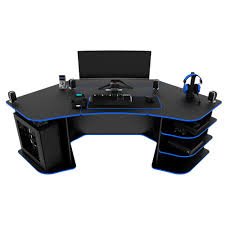
A great gaming table is more than just a place to put a monitor and mouse — it’s the foundation of comfort, performance, and aesthetics for any serious setup. With a budget of up to $1,000, you can choose from premium mid-range desks that offer robust construction, smart ergonomics, built-in cable management, and gamer-friendly extras like monitor mounts, LED accents, and storage. This guide walks you through everything you need to know to pick the best gaming table under $1,000 in the USA: features to prioritize, types of desks, real-world recommendations, setup tips, and maintenance advice.
Why a $1,000 Budget Makes Sense
Spending up to $1,000 opens the door to high-quality materials and engineering without stepping into professional or custom furniture price tiers. For this price you can expect:
- Solid steel or aluminum frames with high weight capacity and minimal wobble.
- Thicker tops (20–30 mm) of MDF, engineered wood, or laminated plywood for durability.
- Advanced ergonomics, including height adjustability (electric or premium manual), curved surfaces, and better cable routing.
- Useful extras like integrated power modules, headphone hooks, cup holders, elevated monitor shelves, and smart storage.
- Longer warranties and better overall build quality that will last years.
If you want a stable, comfortable, and future-proof gaming station that looks and feels premium, the $1,000 range is where value and quality meet.
Key Features to Prioritize
When comparing gaming tables under $1,000, focus on the following features — they determine long-term satisfaction more than flashy extras.
1. Sturdy Frame & Stability
- Look for steel or aluminum frames with cross-bracing or triangular supports.
- Check the weight capacity — 200–350 lbs is common for premium desks and safe for multi-monitor setups plus peripherals.
- Avoid thin tubular legs or frames with a lot of flex.
2. Desktop Material & Thickness
- 20–30 mm thick tops of high-density MDF, laminated plywood, or hardwood veneer provide rigidity and resistance to warping.
- Matte or textured finishes reduce glare and wear; carbon-fiber textures are popular and durable.
3. Height Adjustability
- Electric height-adjustable desks allow seamless sit/stand transitions; many quality models under $1k offer 2-motor lifts.
- Manual crank systems are reliable and cheaper but less convenient. If you plan long gig sessions, consider electric for ergonomics.
4. Surface Area & Shape
- Decide between rectangular, L-shaped, or curved/race-style tops.
- For multi-monitor setups, target 60–72 inches width and 24–32 inches depth for comfortable placement.
- L-shaped desks are perfect for dual use (work + gaming) or corner deployment.
5. Cable Management & Power Integration
- Built-in cable trays, grommets, or channels keep the setup tidy.
- Some desks include power strips, USB hubs, or wireless charging pads which reduce clutter and improve convenience.
6. Ergonomic Extras
- Monitor shelves or risers for proper eye height.
- Headset hooks, cup holders, controller cradles, and under-desk drawers add convenience without crowding the surface.
- Rounded front edge or an ergonomic curve improves wrist comfort.
7. Finish & Aesthetics
- Choose a finish that fits your room — matte black, faux woodgrain, white, or subtle RGB accents.
- If you care about matching furniture, look for desks with neutral styles rather than overtly “gamer” looks.
Types of Gaming Tables (Which Is Right for You?)
- Electric Sit-Stand Desks: Best for health and flexibility; switch between sitting and standing during long sessions. Ideal for streamers who stand occasionally or users with back issues.
- L-Shaped Corner Desks: Offer maximum surface area and are great for dual rigs (PC + console) or streaming setups with dedicated areas.
- Racing-Style Gaming Desks: Compact, aesthetic, and often include gamer-centric accessories (RGB trims, headset hooks). Great for single-PC setups focused on looks and functionality.
- Adjustable/Hybrid Desks: Offer manual height adjustment or modular attachments — a middle ground if you want some ergonomic flexibility without paying for full electric systems.
- Professional Workstation Desks: Less “gamer” styling, more storage and cable management; ideal for creators who game but also need content-creation workflows.
Top Real-World Considerations (Before You Buy)
- Room Measurements: Measure doorways, elevator clearances, and room corners to ensure the desk fits from delivery to placement.
- Chair Compatibility: Ensure your chair slides in comfortably when the desk is at its lowest ergonomic height.
- Monitor Arm Support: If you plan to use monitor arms, verify the desk’s edge thickness and whether it supports clamp mounts.
- Assembly Complexity: Premium desks are heavier and can take 60–120 minutes to assemble — consider professional assembly if needed.
- Warranty & Support: Look for at least a 1-year warranty; 3 years is better for motors and frames.
Recommended Features & Example Configurations (Under $1,000)
Below are example configurations to help match your priorities to desk features. These are conceptual builds representing what you can expect to find in the U.S. market at this price.
A. The Streamer’s Workhorse — Electric Sit-Stand All-Rounder
- Frame: Dual-motor electric lift, steel frame, anti-collision.
- Top: 60″ × 30″ 25mm textured laminated MDF.
- Extras: Built-in cable tray, under-desk power module, headset hook, cup holder.
- Why: Seamless height changes for dynamic streams and long recording sessions.
B. The Ultimate Multi-Monitor Battlestation — L-Shaped Corner Desk
- Frame: Heavy-duty steel with corner reinforcement.
- Top: 72″ × 48″ L-shape, 22–25mm thickness with finished edges.
- Extras: Large cable channel, monitor riser shelf, built-in RGB strip.
- Why: Maximum surface for consoles, a capture PC, and multiple monitors.
C. The Compact Pro Setup — Racing-Style Desktop with Accessories
- Frame: Reinforced legs, carbon fiber finish top.
- Top: 55″ × 28″ curved front.
- Extras: Phone dock, wireless charging pad, controller cradles.
- Why: Looks pro, great for limited space, and includes gamer-centric add-ons.
D. The Creator’s Hybrid — Work + Play Desk
- Frame: Sturdy steel with modular attachment points.
- Top: 60″ × 30″ with integrated shelf and pullout keyboard tray.
- Extras: Drawer for storage, cable grommets, mount points for mic/arm.
- Why: Balanced for productivity tasks, content creation, and gaming.
Setup Tips for Pro Comfort & Performance
- Monitor Height & Distance: Top of the monitor at or slightly below eye level; 20–30 inches distance for 24–27″ displays.
- Keyboard & Mouse Placement: Keep wrists neutral; consider a large desk mat for smooth tracking and comfort.
- Cable Routing: Run power and data cables in separate channels to reduce electromagnetic interference and tangle risk.
- Lighting: Bias/ambient lighting behind the monitor reduces eye strain and looks cinematic on camera.
- Ventilation for Consoles/PCs: Avoid blocking airflow under or behind large devices; leave 4–6 inches clearance for vents.
Maintenance & Longevity Advice
- Tighten Bolts Periodically: Vibration and use can loosen fasteners over time. Check after the first month and then every 6 months.
- Protect the Surface: Use a desk mat for mouse and keyboard; coasters for drinks; avoid hot items directly on the top.
- Protect Motors & Electronics: For electric desks, avoid overloading, and keep the motorized legs free from cables and debris.
- Cleaning: Use a soft microfiber cloth; mild soap solution for stubborn stains. Avoid harsh solvents that strip finishes.
- Firmware & Parts: If your desk has electronics, register the product to get firmware updates and faster warranty service.
Budgeting: How to Spend Your $1,000 Wisely
- $600–$750: Expect a high-quality racing-style or sturdy L-shape with good build and useful features.
- $750–$1,000: Look for dual-motor electric sit-stand desks, premium laminate tops, and integrated power solutions.
- Add-ons to consider: monitor arms, a premium mat, cable raceways, and an ergonomic chair (if you don’t already have one). These significantly improve comfort and the overall experience.
FAQs
Q: Are electric sit-stand desks worth the extra cost?
A: Yes, if you plan to alternate between sitting and standing frequently. They improve posture and circulation, but manual crank desks are a solid, cheaper alternative if you rarely change height.
Q: Do I need a desk mat?
A: While optional, a large desk mat protects the surface, improves mouse tracking, and visually unifies your setup.
Q: Can I mount heavy triple monitors on these desks?
A: Many premium frames support monitor arms, but confirm the desk edge thickness and clamp compatibility. Also verify the desk’s weight capacity if you have heavy displays.
Q: How much assembly time should I expect?
A: Plan for 1–2 hours for most premium desks; two people make the process safer and faster.
Final Thoughts
A best gaming table under $1,000 blends durability, ergonomics, and smart features. Whether you prioritize a sit-stand electric desk for health, an expansive L-shaped battlestation for streaming, or a sleek racing-style desk that looks great on camera, the $1,000 budget gives you serious options that will serve you for years. Focus on a sturdy frame, a thick quality top, proper cable management, and the ergonomics that suit your body and space — and your gaming setup will be comfortable, stable, and future-ready.
Want help choosing a specific model based on your room measurements and gear list? Tell me your monitor sizes, whether you stream, and how much space you have — I’ll recommend the best configurations that match your needs.
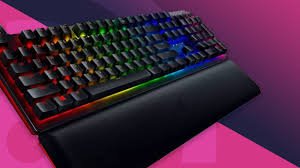
A $200 budget for a gaming keyboard lands you in a sweet spot: you can expect premium materials, high-end switches, more advanced customization, and the kind of durability that lasts years. Whether you’re a competitive FPS player, an MMO macro wizard, or a hybrid creator/gamer, this guide explains what really matters and how to choose the best gaming keyboard under $200 in the USA — without wasting money on features you won’t use.
Why the $200 Range Is Worth It
At this price point you’re buying build quality and longevity rather than gimmicks. Typical advantages include:
- High-quality mechanical switches (often branded switches with long lifespans).
- Solid metal top plates or thicker composites that reduce flex.
- Reliable wireless options with low-latency dongles.
- Per-key RGB with deep customization and onboard profile memory.
- Hot-swap sockets, superior stabilizers, & PBT keycaps on many models.
In short: you get a keyboard that feels premium, performs consistently, and stands up to heavy daily use.
What to Prioritize — Key Features Explained
1. Switch Type (The Heart of the Experience)
Switches change everything: feel, speed, sound, and typing comfort.
- Linear: Smooth and quiet — excellent for fast flicks in FPS games.
- Tactile: A subtle bump on actuation makes these great for mixed typing and gaming.
- Clicky: Loud, satisfying clicks — great for typists but noisy for shared spaces.
At this budget you’ll often find Cherry MX, Kailh, Gateron, or proprietary premium switches. Consider hot-swappable boards if you like experimenting with different switches.
2. Build & Materials
Look for aluminum or thick steel top plates, sturdy frames, and well-seated stabilizers. PBT keycaps resist shine and feel nicer than ABS. A heavy, rigid chassis reduces wobble and improves typing consistency.
3. Form Factor & Layout
- Full-size (104 keys): Good for MMOs and productivity.
- TenKeyLess (TKL): Popular for FPS players who want more mouse space.
- 75% / 65% / 60%: Compact layouts save desk space and look slick — trade off some dedicated keys.
Pick the layout that matches your desk space and hotkey needs.
4. Wired vs Wireless
- Wired: Lowest latency and simplest setup — still the go-to for esports.
- Wireless (2.4 GHz dongle or Bluetooth): At this price, you can find wireless keyboards with performance rivaling wired ones. Check for low-latency dongle mode, rechargeable battery life, and fast charging.
5. Software & Customization
Good software matters: programmable macros, easy key remapping, RGB layers, and onboard profile storage let you tailor the keyboard to games and workflows. Prefer simple, stable software with frequent updates.
6. Ergonomics & Extras
- Detachable wrist rests (magnetic is clean).
- Angle/tilt options and comfortable keycap profiles (OEM, Cherry).
- Dedicated macro keys or integrated knob/dial can be a productivity boost.
Performance Features That Impact Gameplay
- Polling Rate: 1000 Hz is standard for pro responsiveness.
- Anti-ghosting / NKRO: Ensures every keypress registers during intense combos.
- Stabilizers: Well-lubed, properly mounted stabilizers remove rattle on larger keys.
- Onboard Memory: Saves profiles so your settings travel with the keyboard.
Sound & Feel — Tuning Your Experience
At this level you can tune the keyboard’s acoustics: switch dampeners, factory lubed switches, and foam dampening inside the case all reduce hollowness and produce a satisfying tone. If you stream or share space, test or read about noise characteristics before buying.
Who Each Keyboard Type Suits Best
- Competitive FPS Players: TKL or 65% with linear switches, 1000 Hz polling, and a lightweight but rigid frame.
- MMO/Strategy Players: Full-size with dedicated macro keys and tactile switches for reliable presses.
- Content Creators / Streamers: Premium keycaps, media controls (knobs), and strong wireless options for clean setups.
- Hybrid Users (work + play): Tactile switches, full layout or TKL depending on numpad need, and ergonomic wrist support.
Typical Tradeoffs to Expect
Even under $200 you won’t get everything — weigh tradeoffs:
- Ultra-luxury boutique keyboards (custom CNC cases, exotic materials) cost more.
- Top-tier wireless battery life still often requires some compromise for lower weight.
- Extreme macro ecosystems may be limited to specialist models.
But for most buyers, a well-chosen keyboard under $200 balances these tradeoffs beautifully.
Sample Buying Checklist (Use When Comparing Models)
- Switch type & rating (clicks lifespan)
- Hot-swap sockets (yes/no)
- PBT keycaps or high-quality ABS
- NKRO / 1000 Hz polling rate
- Aluminum or rigid steel top plate
- Onboard profile memory + software stability
- Detachable wrist rest and solid stabilizers
- Wireless low-latency mode (if wireless)
- Warranty & support (1–3 years)
How to Test Before You Buy (If Possible)
If you can visit a store or try at a friend’s place:
- Test the feel of the switches for 10–15 minutes (typing, gaming).
- Check stability by applying gentle pressure; no flexing or creaks.
- Try macros and software setup (if demo is available) to ensure the interface feels intuitive.
- Listen for scroll wheel and key click noise — find what suits your environment.
Final Thoughts — Make Your $200 Count
The best gaming keyboard under $200 should feel tailored to your hands and your games. Prioritize switch quality, build rigidity, and a layout that matches your use, then layer on extras like hot-swap sockets, PBT keycaps, and low-latency wireless if they matter to you. In this price range you’re buying a peripheral that can be a long-term centerpiece of your setup — choose carefully, and it will repay you in comfort and precision.
Want model recommendations matched to your hand size, grip style, and favorite games? Tell me those details and I’ll suggest three specific keyboards that fit your exact needs.
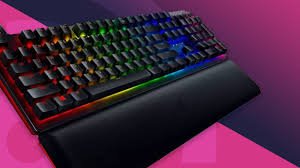
A great gaming keyboard is one of the most impactful upgrades you can make to your PC setup. For under $100, you can get a keyboard with tactile switches, customizable lighting, solid build quality, programmable macros, and features that seriously improve comfort and responsiveness. This guide walks you through everything you need to know to pick the best gaming keyboard under $100 in the USA: how to compare options, which features matter most, recommended types, and practical buying tips so you get the most value for your money.
Why $100 Is a Sweet Spot for Gaming Keyboards
At this price point you typically get real mechanical switches (or very good hybrid designs), strong construction, and software support that lets you tailor the keyboard to your playstyle. You don’t get the ultra-premium boutique materials of $200+ boards, but you do get performance that feels—and plays—like a pro keyboard for most gamers.
Mechanical vs Membrane: Which Should You Choose?
- Mechanical (recommended): Uses individual mechanical switches under each key. Offers superior tactile feedback, faster actuation, longer lifespan, and easy customization. Mechanical keyboards are the standard for competitive gaming.
- Membrane / Hybrid: Softer, quieter, and often cheaper. Good for casual gamers or shared workspaces. Newer hybrid designs (mechanical feel with membrane cost) are improving but usually can’t match mechanical durability or feel.
If you’re serious about gaming, aim for a mechanical keyboard—many excellent options under $100.
Key Features That Matter Most
1. Switch Type & Feel
Switches determine how the keyboard feels and performs. Common categories:
- Linear (smooth, no click) — ideal for fast double-taps and FPS flicks.
- Tactile (bump on actuation) — good balance for typing and gaming.
- Clicky (tactile + audible click) — satisfying feedback but noisier.
Popular switch brands include Cherry, Gateron, Kailh, and Outemu. Under $100, you’ll often find Gateron or Kailh switches providing excellent value.
2. Key Rollover & Anti-Ghosting
Look for NKRO (n-key rollover) or at least 6-key rollover. These features ensure multiple simultaneous key presses register correctly—critical for complex in-game inputs.
3. Build Quality
- Frame: Aluminum top plates add rigidity; reinforced plastic can be perfectly fine if well-designed.
- Keycaps: PBT keycaps resist shine and last longer than ABS. Many keyboards in this range still ship with ABS, but PBT is a bonus.
- Stabilizers: Good stabilizers reduce rattling on larger keys (spacebar, enter).
4. Form Factor
- Full-size (104 keys): Has number pad—great for productivity and some MMOs.
- Tenkeyless (TKL, 87 keys): Removes numpad for better mouse space; popular for FPS players.
- 75% / 65% / 60% compact: Save desk space and look minimalist; compact layouts trade off dedicated keys for a tighter footprint.
Choose based on desk space and whether you need a numpad.
5. Wired vs Wireless
- Wired: Lowest latency and no battery to worry about—preferred for competitive play.
- Wireless (2.4 GHz or Bluetooth): Clean desk and portability; check for low-latency 2.4 GHz dongles and long battery life if you choose wireless.
6. RGB & Backlighting
RGB is mostly cosmetic but useful for visibility in low light and for keybinding cues. Quality lighting with per-key customization is a plus—but don’t pick a keyboard for RGB alone.
7. Programmability & Software
Good software enables macro recording, custom lighting, and profile switching. Look for user-friendly software and onboard profile storage so your settings travel with the keyboard.
8. Hot-Swappable Switches (Optional)
Hot-swap sockets let you change switches without soldering—great if you want to experiment. Some sub-$100 keyboards include this feature and it’s an excellent long-term value.
Types of Gamers & Recommended Keyboard Styles
- FPS / Competitive Players: Choose a TKL or 60% mechanical keyboard with linear or low-travel tactile switches, 1000Hz polling, and minimal macro gimmicks.
- MMO / MMO-Actions: Full-size or TKL with extra programmable buttons or macro layers. Durable switches and robust software are essential.
- Streamer / Content Creators: Look for programmable keys, per-key RGB (for visual cues), and a comfortable wrist rest. Wireless can be a plus for staging.
- Hybrid (work + play): A tactile switch option and a full-size layout offer the best compromise for typing and gaming.
Practical Buying Tips
- Try switches if you can—local stores or friends let you test different feels.
- Prioritize switch and build quality over flashy RGB if you must choose.
- Check firmware support and driver software—ongoing updates matter.
- Look for user reviews about noise and durability—real users call out stabilizer issues or early switch failures.
- Consider warranties and return policies—a 1–2 year warranty is common and recommended.
- Watch for sales—gaming keyboards often drop below sticker price during seasonal promotions.
Quick Buying Checklist
- Mechanical switches (or hybrid if you prefer quiet)
- At least 6KRO, preferably NKRO
- Durable construction with minimal flex
- Anti-ghosting + 1000Hz polling rate (for serious gamers)
- Software for key mapping & macro support
- PBT keycaps and hot-swap sockets are bonuses
- Comfortable layout for your grip and desk space
FAQs
Q: Are more expensive switches worth it?
A: Higher-end switches and premium stabilizers feel nicer and last longer, but many mid-range switches today are excellent—especially if you pair them with good keycaps and a solid frame.
Q: Is wireless okay for competitive gaming?
A: Modern 2.4 GHz wireless keyboards can be as responsive as wired ones, but wired is still the safest choice for pro-level play or tournaments.
Q: What’s the lifespan of a mechanical keyboard?
A: Most mechanical switches are rated for 50–100 million keystrokes. With normal use, a good keyboard can last many years.
Final Thoughts
Under $100 you can find a gaming keyboard that provides professional-level responsiveness, satisfying tactile feedback, and helpful customizability. Prioritize switch type, build quality, and layout to match your playstyle, and look for extras like hot-swap sockets or PBT keycaps if you want longevity and customization. With so many solid options available, this price bracket is one of the best places to get maximum performance for your money.
If you tell me your preferred game genre, hand size, and whether you want wireless, I’ll recommend three specific keyboard styles and feature sets tailored to your needs.
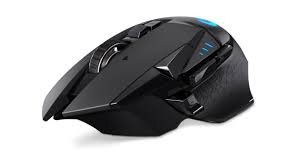
A great gaming mouse is one of the single biggest upgrades you can make to your gameplay. At the under $100 price point you get a sweet balance: premium sensors, solid ergonomics, programmable buttons, and features that used to be reserved for flagship peripherals. This guide is a fully original, human-written look at what to expect, what to prioritize, and how to pick the best gaming mouse under $100 in the USA for your playstyle.
Why spend up to $100 on a gaming mouse?
Spending up to $100 opens doors you won’t find in the truly budget range:
- Top-tier optical sensors with low latency and reliable tracking.
- Comfortable, refined shapes designed for long sessions.
- Better switches with higher click lifespans.
- Onboard memory & customization software for DPI, button mapping, and macros.
- Wireless options with low-latency dongles that rival wired performance.
If you play competitively, stream regularly, or use your PC for long daily sessions, a sub-$100 mouse is an investment in consistency and comfort.
Key features to prioritize
When comparing models, focus on these attributes — they determine real-world performance more than flashy marketing.
1. Sensor quality
A true optical sensor (not a low-end infrared) with accurate tracking, low jitter, and configurable DPI is essential. Look for sensors that advertise consistent tracking across surfaces and low lift-off distance if you use quick flick shots.
2. Polling rate & latency
A 1000 Hz polling rate (or selectable 125/500/1000 Hz) is standard in this bracket and provides smooth, responsive input. For wireless mice, check that the dongle mode offers comparable latency to wired.
3. Shape, size & grip compatibility
Ergonomics matter. Match the mouse to your grip and hand size:
- Palm grip: larger, rounded back for full-hand support.
- Claw grip: medium size with a pronounced hump near the rear.
- Fingertip grip: smaller, lighter mice with compact profiles.
Measure your hand (length and width) and read dimensions when possible.
4. Buttons & customization
At least two side buttons are common, but more programmable buttons are helpful for MMO/MOBA players. Check whether the software allows easy remapping and macro recording, and if the mouse stores profiles onboard.
5. Build quality & switches
Mechanical switches rated for 20–70 million clicks are typical. A sturdy scroll wheel, firm side buttons, and a stable shell make a mouse feel premium over time.
6. Weight & balance
Some prefer ultra-lightweight (sub-70 g) mice for fast flicks; others like a heavier mouse for controlled tracking. Removable weight systems are a nice-to-have but not required.
7. Wireless vs wired
Wired mice still offer the best value for latency-sensitive players. Modern wireless mice with a 2.4 GHz dongle or proprietary low-latency mode can match wired performance — and provide cable freedom. Battery life and recharge time are major considerations for wireless.
8. Software & driver support
Good software lets you change DPI steps, customize RGB, program buttons, configure lift-off distance, and save profiles. Clean, supported software is worth more than extra buttons on a poorly-supported device.
Types of gamers and the mouse that fits them
- FPS Competitors: lean, lightweight, high-polling-rate mice with minimal smoothing. Prioritize sensor integrity and low latency.
- MOBA / MMO Players: ergonomic mice with multiple programmable side buttons and onboard memory for macros.
- Casual & Streamers: comfortable, attractive mice with balanced features, reliable sensors, and good looks (RGB optional).
- Content Creators: mice with dedicated profile switching and precise tracking for editing and productivity shortcuts.
Practical buying tips
- Try before you buy, if possible. Shape and comfort are subjective.
- Check hand-size charts provided by manufacturers or reviewers.
- Wired for pros, wireless for comfort, unless a wireless model offers proven low-latency performance.
- Prioritize sensor and shape over RGB or marketing extras.
- Look for on-sale deals — many mice fall under $100 during promotions.
- Read user reviews for long-term durability (scroll wheel, side-button reliability).
- Consider warranty and customer support — reputable brands often provide robust service.
Recommended feature checklist (quick)
- True optical sensor with adjustable DPI (at least 400–16,000 DPI range)
- Polling rate: up to 1000 Hz selectable
- Ergonomic design matching your grip style
- 2–8 programmable buttons with macro support
- Durable mechanical switches (20M+ clicks)
- Wired braided cable or wireless 2.4 GHz low-latency mode
- Onboard memory for saving profiles (optional but nice)
- Reliable software for customization
Example picks by category (what to look for in models)
Best for FPS: A lightweight, wired or low-latency wireless mouse with an excellent optical sensor, minimal smoothing, and a responsive 1000 Hz polling rate. Look for simple, ergonomic shapes and tight tolerances in the buttons and scroll wheel.
Best for MMOs / MOBAs: A mouse with multiple side buttons (or a comfortable thumb grid), on-the-fly DPI switching, and solid macro software. Comfort and button placement are more important than ultra-low weight.
Best wireless under $100: A mouse with a dedicated 2.4 GHz dongle, confirmed sub-2ms latency in dongle mode, and at least 30–50 hours battery life with RGB off (or longer in power-saving profiles).
Best ambidextrous / left-handed friendly: Symmetrical shapes with side buttons accessible from both sides or removable buttons. Pure ambidextrous mice are rarer in the under-$100 range but do exist.
Common FAQs
Q: Will a $100 mouse make me better at games?
A: It won’t magically improve skill, but better tracking, comfort, and customization help you play more consistently and reduce fatigue — which improves performance over time.
Q: Is wireless safe for competitive play?
A: Yes — modern wireless gaming mice with low-latency dongles are competitive-grade. That said, many pros still prefer wired for absolute consistency.
Q: How long should a good mouse last?
A: With normal use, a well-built mouse can last 3–5 years or longer. Switch lifespans, build quality, and how you treat the mouse determine longevity.
Q: Are high DPI numbers important?
A: Absolute DPI numbers are less important than the sensor’s true tracking performance. High DPI offers headroom, but most players use much lower DPI settings combined with in-game sensitivity.
Final thoughts
The best gaming mouse under $100 is the one that fits your hand, matches your playstyle, and offers a reliable sensor with customization you understand. At this price point you can expect performance close to pro-level gear — just take the time to match shape and features to how you play. If you want, tell me your hand size, grip style, and favorite game genre, and I’ll recommend specific models and exact specifications tailored to you.

Best Gaming Keyboard Under $200 in USA — The 2025 Buyer’s Guide

Best Gaming Keyboard Under $100 in USA — The Complete 2025 Buyer’s Guide

Best Gaming Mouse Under $100 in USA — A Practical, Human Guide (2025)

FintechZoom.com Nickel – Exploring Nickel Prices and Market Trends in the Digital Age
Best Gaming Keyboard Under $200 in USA — The 2025 Buyer’s Guide

How to Become a Pro in Gaming: The Ultimate Guide to Leveling Up Your Skills
-
 Crypto7 months ago
FintechZoom.com Nickel – Exploring Nickel Prices and Market Trends in the Digital Age
-
Crypto7 months ago
Best Gaming Keyboard Under $200 in USA — The 2025 Buyer’s Guide
-
 Crypto7 months ago
How to Become a Pro in Gaming: The Ultimate Guide to Leveling Up Your Skills
-
Crypto7 months ago
Best Gaming Keyboard Under $100 in USA — The Complete 2025 Buyer’s Guide
-
 Crypto7 months ago
Best Laptop Under $500 in USA — Your Complete 2025 Buying Guide
-
 Crypto7 months ago
Best Gaming Tables Under $500 in USA — The Complete 2025 Buying Guide
-

 Crypto7 months ago
Best Laptop Under $1000 in the USA (2025 Buyer’s Guide)
-
 Crypto7 months ago
Best Gaming Mouse Under $50 in USA — A Practical 2025 Buyer’s Guide